
The purpose of this is to register package names and signing keys for all apps that you distribute for Android. In most cases, Google automatically registers package names and certificates used to sign the package from its developer console. In case where it fails to do it, or in cases where some apps are using different package names or different certificates for different stores, we may need to manually finish the process.
The first step is to find out your app’s SHA-256 certificate fingerprint. We will use Keytool utility to retreive this information. Keytool is a built-in Java utility included in the JDK/JRE used to manage cryptographic keys, X.509 certificate chains, and trusted certificates. On windows, this tool (keytool.exe) can be located inside the bin directory of your Java installation. Add this location to the system PATH in widnows so that this tool can be executed from any directory. There are multiple ways to get your apps’ SHA-256 certificate fingerprint as described in the article below
https://support.google.com/googleplay/android-developer/answer/16641489
We will retreive this information from our APK file
keytool -printcert -jarfile "D:\Releases\Android\MyApp\MyApp.v1.apk"
The output will include the Certificate fingerprints section. Look for the SHA-256 line.
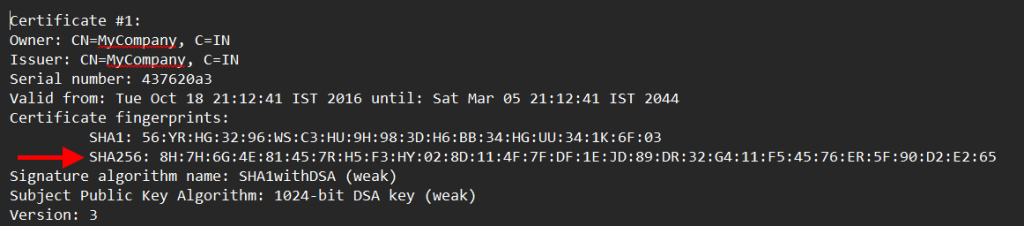
If you are getting error “Not a signed jar file” when using keytool, try apksigner tool which is the most reliable way to extract signature information from an APK. There is only one issue with it. It does not give the SHA-256 certificate fingerprint in colon separated format which is expected by Google Play Store so you will have to use other means to format it.
apksigner verify –verbose –print-certs “D:\Releases\Android\MyApp\MyApp.v1.apk”
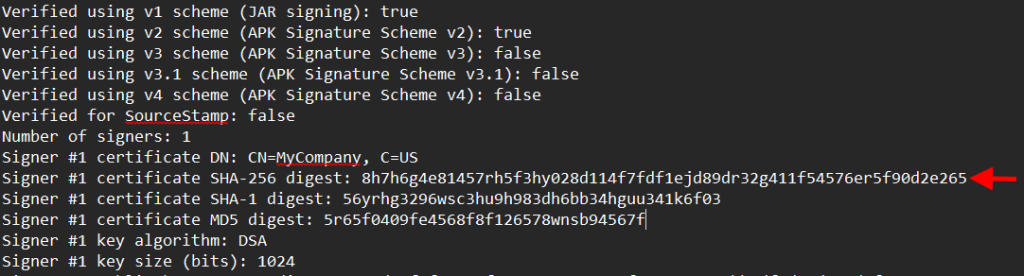
apksigner tool can be found in %LOCALAPPDATA%\Android\Sdk\build-tools\<version-number> in your Android SDK. On windows powershell we can format the string using following command
(apksigner verify –print-certs “D:\Releases\Android\MyApp1\MyApp1.v1.apk” | Select-String “Signer #1 certificate SHA-256 digest:”).Line.Split(“:”)[1].Trim() -replace ‘..(?=.)’, ‘$&:’
In order to add the key to Google Play Console, go to the Android Developer Verification section on developer console and click on the app to add the key
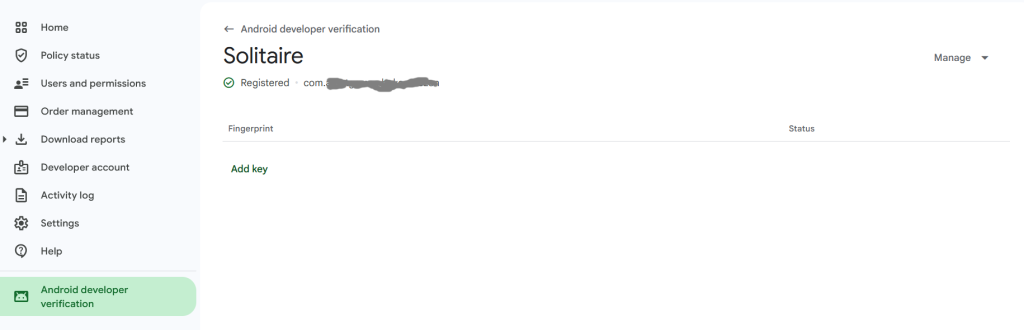
Click on “Add Key” which opens a popup as follwing
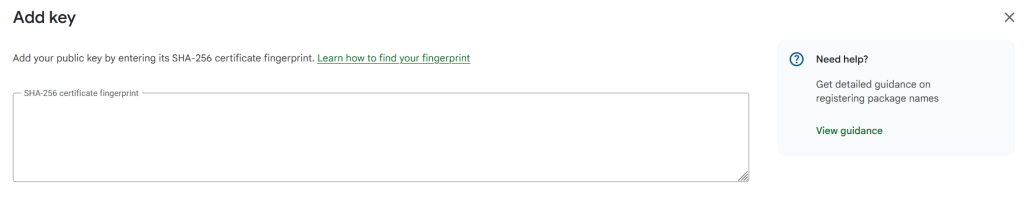
Copy the SHA-256 certificate fingerprint there and press “Add Key” which adds the the certificate fingerprint and the status of added key is shown as “In Review” which changes to “Verified” after successful verification.